
Guide
Create a campaign and choose screens
A campaign sets which creatives run on which screens. You choose every screen on its own and see its address and daily price while doing so.
Back to help
As a video
The video has no sound, the steps appear in it as subtitles.
Step by step
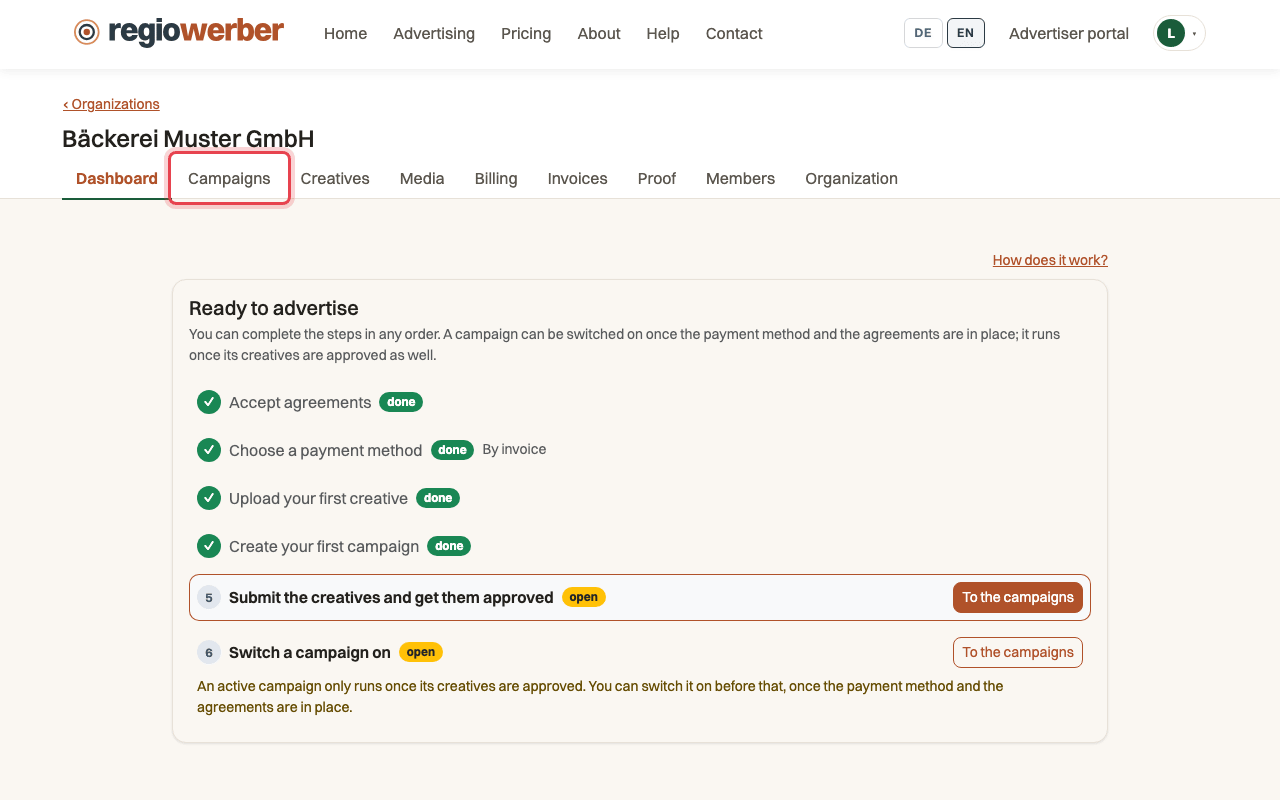
Step 1: Open your organisation and the “Campaigns” tab.
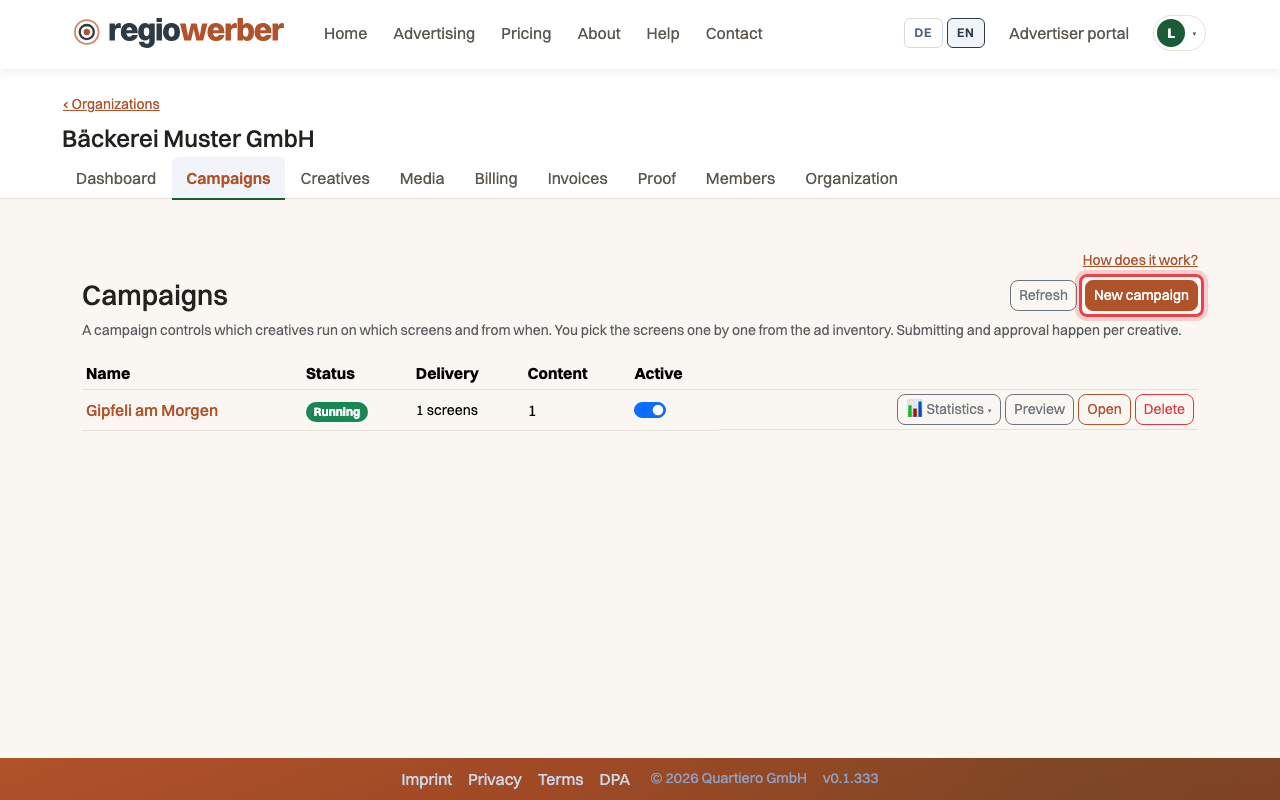
Step 2: Click “New campaign” and give it a name.
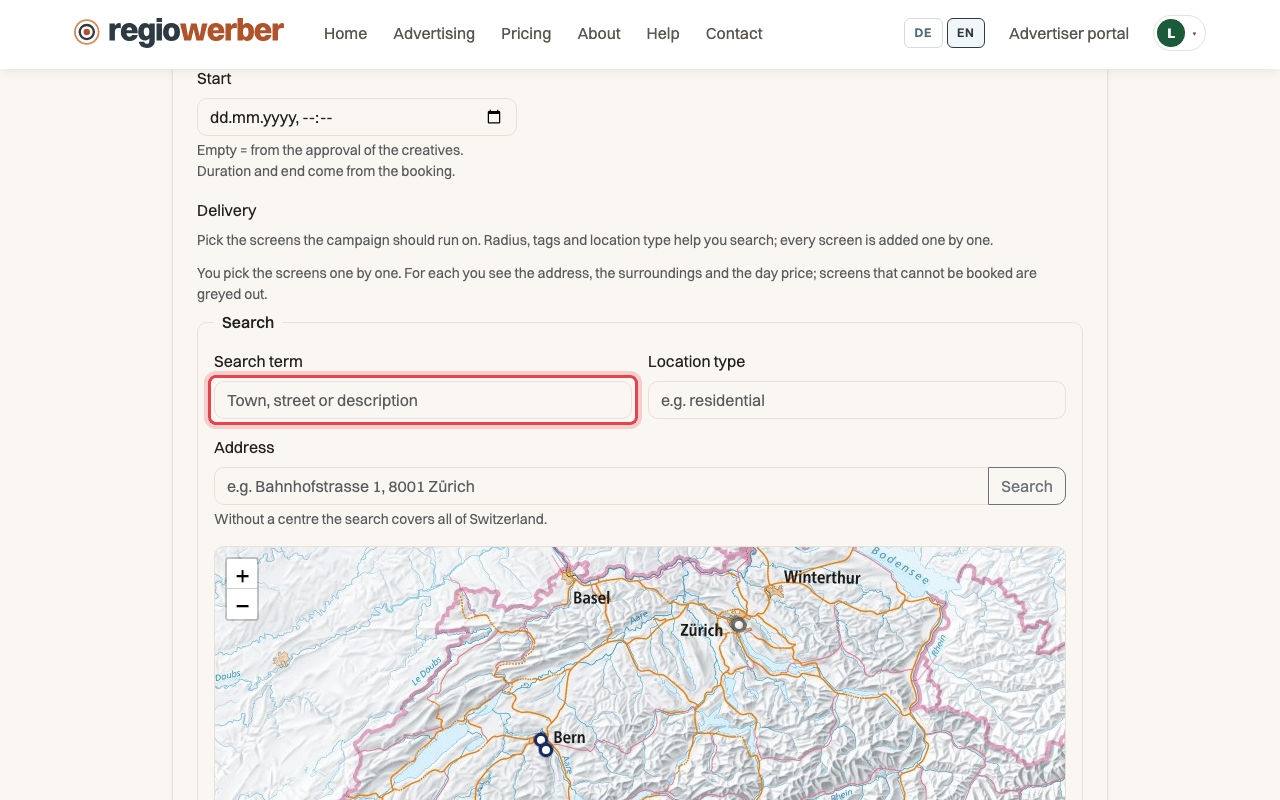
Step 3: Under “Delivery”, search for an address or a town.
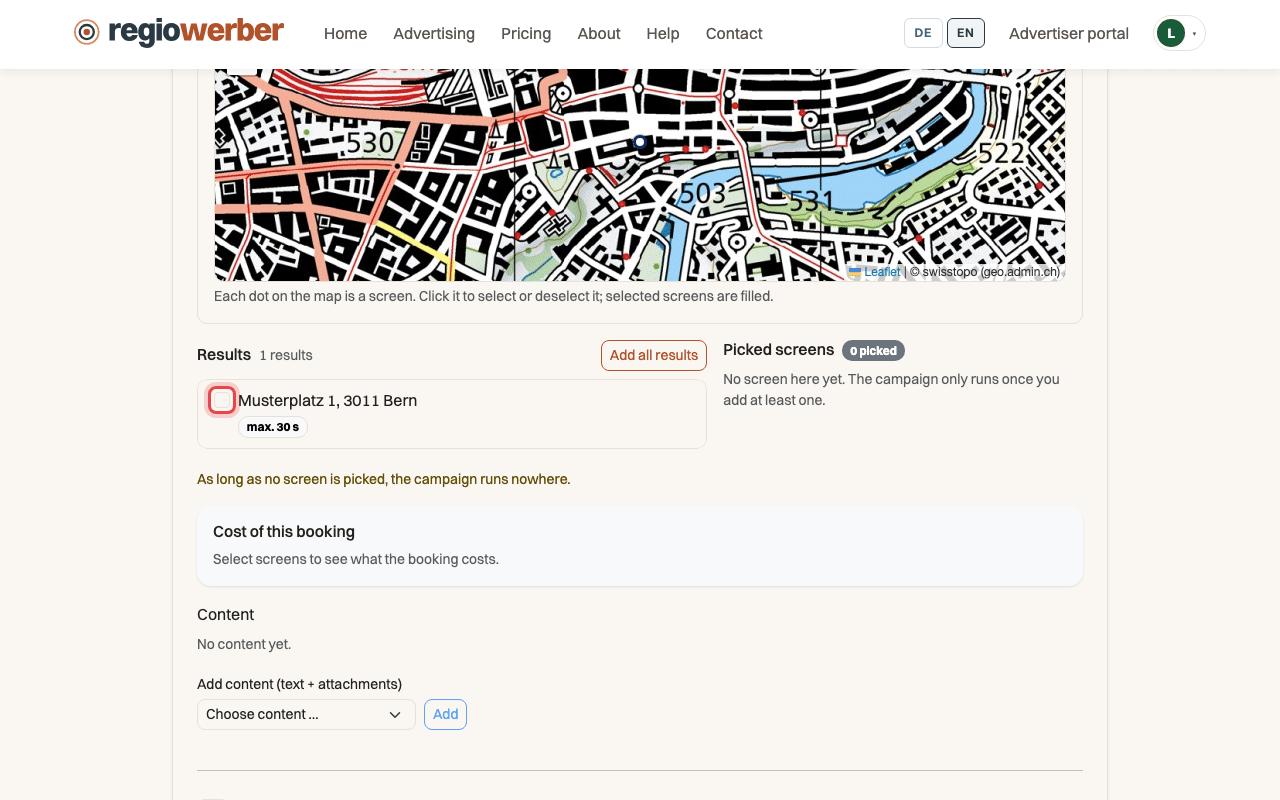
Step 4: Tick each screen in the “Results”, greyed out ones cannot be booked.
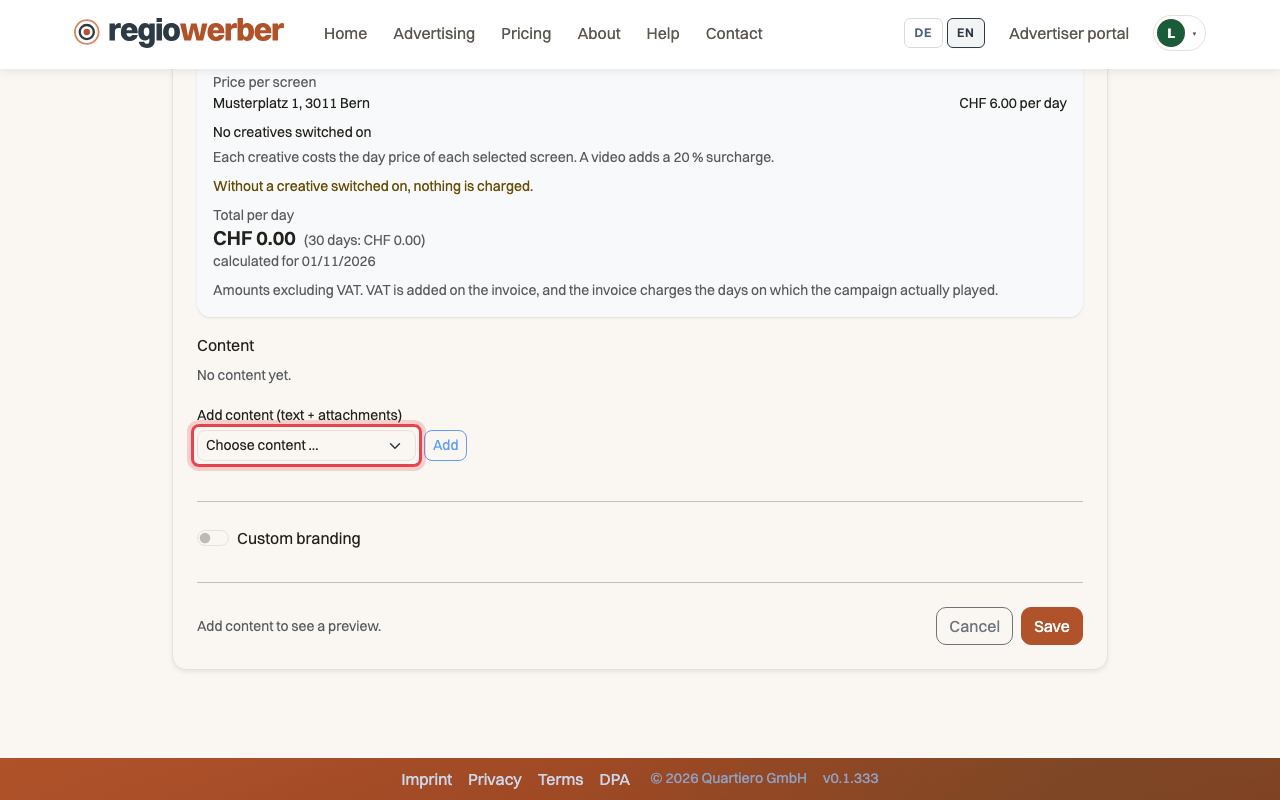
Step 5: Under “Content”, choose a creative and click “Add”.
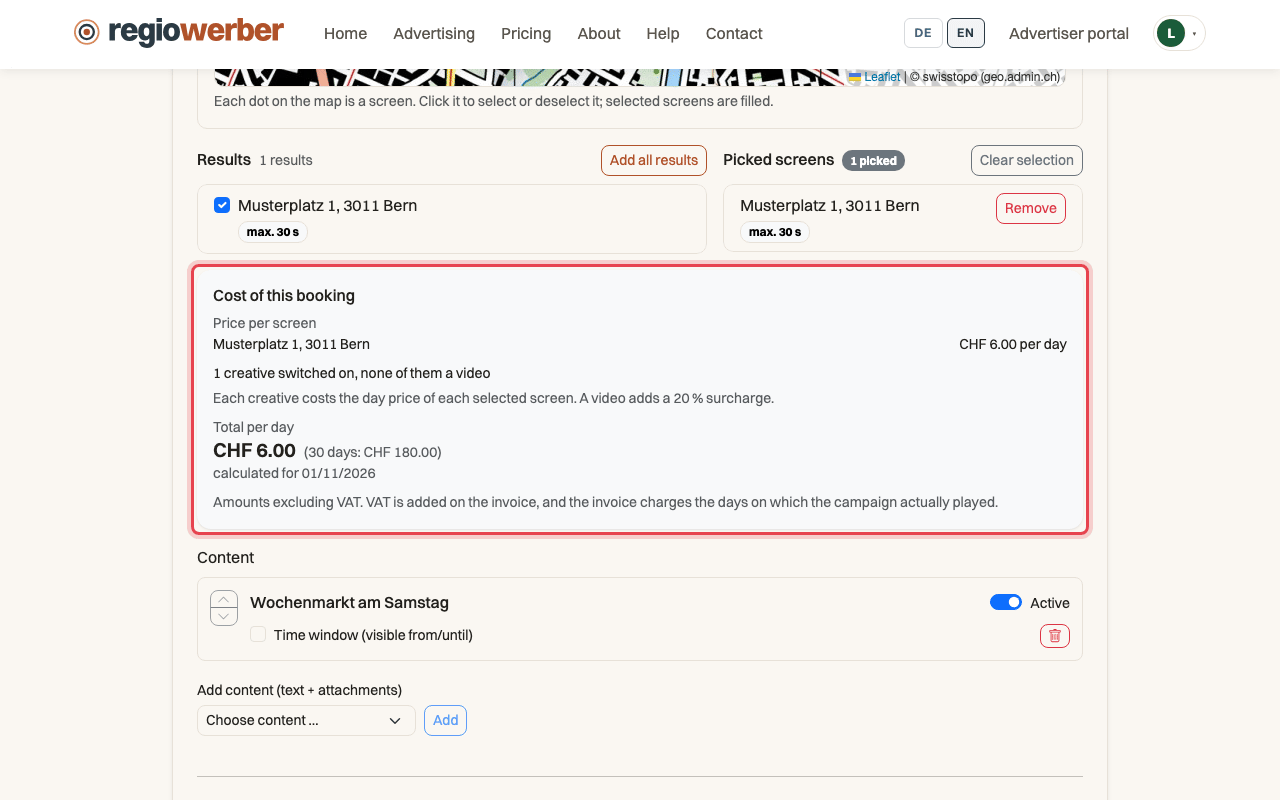
Step 6: “Cost of this booking” shows the daily price per screen and the total.
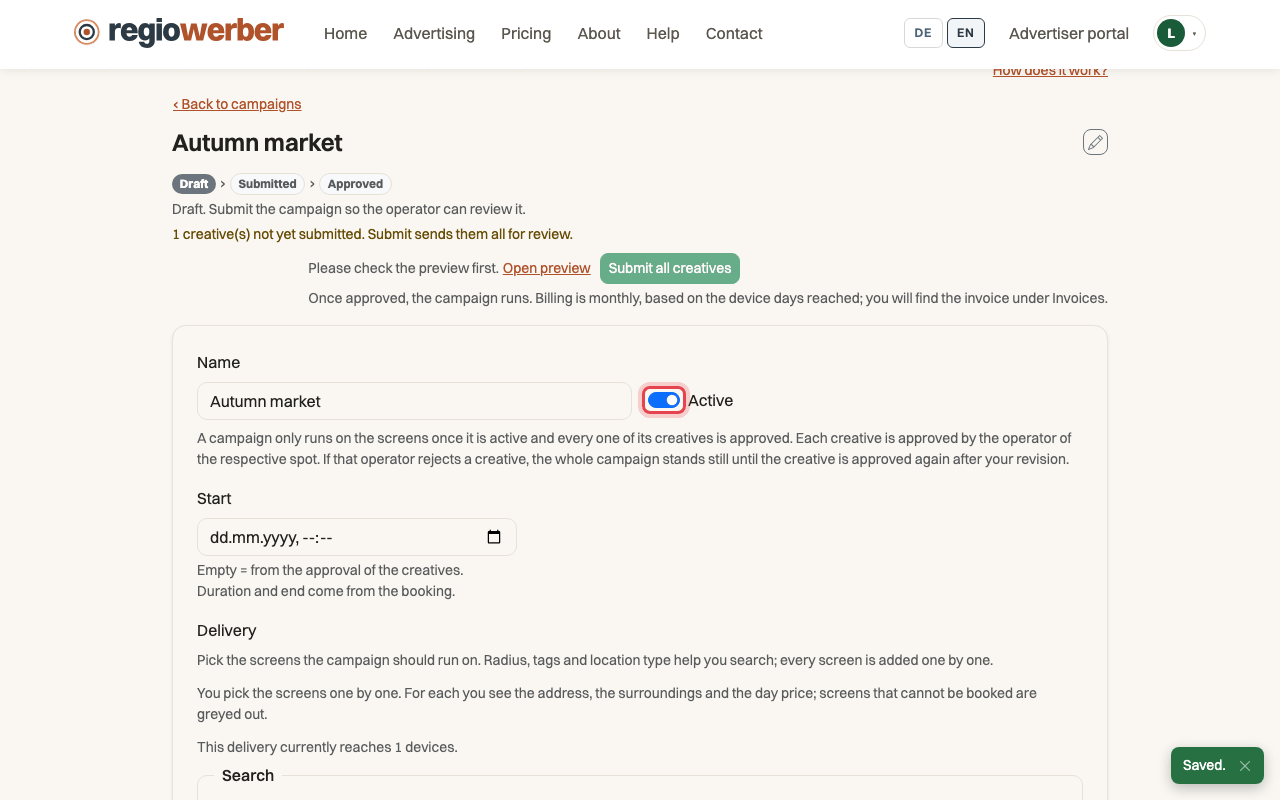
Step 7: Switch on “Active” and click “Save”.
Stuck at some point? Then write through the contact page. Go to contact